
Quick Apps — Managing child devices
Many integrations create multiple devices in your gateway. This section, on the basis of examples, will explain how to add multiple devices with different types and capabilities.
WARNING: this function is available only on Home Center 3, Home Center 3 Lite and Yubii Home with firmware 5.030 or higher.
Overview
When connecting to an IoT cloud service, other hubs or gateways, we usually download a list of their devices so they can be represented as separate ‘endpoints’ in the system. It is also important to set proper types for these devices as it ensures their compatibility with scenes, panels, voice assistance, etc.
Sample model
An example of a hub that aggregates IoT devices with HTTP API. The response with a list of devices presents as follow:
1[
2    {
3        "uid": "b59c67bf196a4758191e42f76670ceba",
4        "name": "bedroom light",
5        "type": "lightBulb",
6        "state": 1
7    },
8    {
9        "uid": "934b535800b1cba8f96a5d72f72f1611",
10        "name": "living room",
11        "type": "dimmableBulb",
12        "state": 80
13    },
14    {
15        "uid": "2be9bd7a3434f7038ca27d1918de58bd",
16        "name": "bedroom",
17        "type": "temperatureSensor",
18        "state": 21.4
19    }
20]
This data can be represented as the following structure:
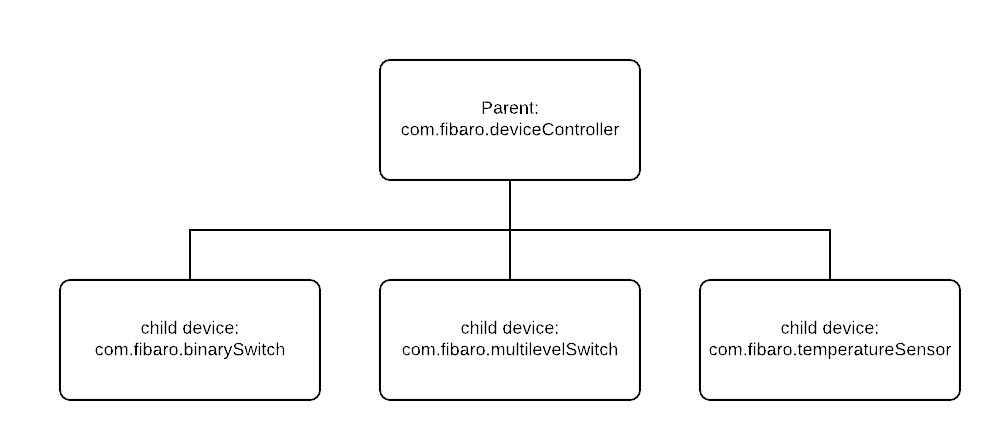
Structure explanation:
com.fibaro.deviceControllerrepresents the hub itself. Its job is to connect to the hub, parse the response data and create child devices. Childs will have type as below:com.fibaro.binarySwitchrepresents the device of alightBulbtype.statefield is mapped tovalueproperty.com.fibaro.multilevelSwitchrepresents the device of adimmableBulbtype.statefield is also mapped tovalueproperty.com.fibaro.temperatureSensorrepresents the device of atemperatureSensortype.
Defining class for a child device
In Quick App you can define a new class as shown below:
1class '<class name>' (<parent class>)
Classes in Quick Apps supports inheritance. It means that your class can extend other existing classes.
When defining new class you must implement its constructor (by defining a special method __init()).
To use Quick Apps built-in mechanism for handling child devices, we derive from class QuickAppChild.
The example below presents a definition of a class called MyBinarySwitch, which derives from class QuickAppChild:
1-- Sample class for handling your binary switch logic. You can create as many classes as you need.
2-- Each device type you create should have its own class which inherits from the QuickAppChild type.
3class 'MyBinarySwitch' (QuickAppChild)
4
5-- __init is a constructor for this class. All new classes must have it.
6function MyBinarySwitch:__init(device)
7    -- You should not insert code before QuickAppChild.__init.
8    QuickAppChild.__init(self, device) -- We must call a constructor from the parent class
9
10    self:debug("MyBinarySwitch init")
11end
We define classes to represent our child devices. Usually, we create class per device type.
For example: we want to handle childs with types: com.fibaro.binarySwitch, com.fibaro.multilevelSwicth and com.fibaro.temperatureSensor.
It is best to define 3 classes for that.
Defining method for new classes
Defining new methods for your classes, look the same as for class QuickApp.
An example of a class with all methods:
1-- Sample class for handling your binary switch logic. You can create as many classes as you need.
2-- Each device type you create should have its own class which inherits from the QuickAppChild type.
3class 'MyBinarySwitch' (QuickAppChild)
4
5-- __init is a constructor for this class. All new classes must have it
6function MyBinarySwitch:__init(device)
7    -- You should not insert code before QuickAppChild.__init.
8    QuickAppChild.__init(self, device) -- We must call a constructor from the parent class
9
10    self:debug("MyBinarySwitch init")
11end
12
13function MyBinarySwitch:turnOn()
14    self:debug("child", self.id, "turned on")
15    self:updateProperty("value", true)
16end
17
18function MyBinarySwitch:turnOff()
19    self:debug("child", self.id, "turned off")
20    self:updateProperty("value", false)
21end
22
23function MyBinarySwitch:hello()
24    self:debug("hello from child device", self.id)
25end
Because we derived from QuickAppChild class, we can use its methods (which are described further in this document). Mapping actions to methods work the same. So in this example, sending action turnOn to a child device represented by MyBinarySwitch class, will automatically call MyBinarySwitch:turnOff method.
Creating new child device
If we have all classes defined, we can now create our child devices. For that, we'll use QuickApp:createChildDevice method like in the example below:
1function QuickApp:createChild()
2    local child = self:createChildDevice({
3        name = "myChild",
4        type = "com.fibaro.binarySwitch",
5    }, MyBinarySwitch)
6
7    self:trace("Child device created: ", child.id)
8end
This will create a new device in the system type of com.fibaro.binarySwitch and with the name myChild. In the code, it will create an instance of class MyBinarySwitch. Every new child instance is automatically stored in QuickApp.childDevices member table. So you can access them like this:
1function QuickApp:printChildDevices()
2    -- Print all child devices.
3    self:debug("Child devices:")
4    for id,device in pairs(self.childDevices) do
5        self:debug("[", id, "]", device.name, ", type of: ", device.type)
6    end
7end
Initializing child devices on Quick App startup
When Quick App starts it needs to initialize its child devices. It must know how to map child's types into proper classes. This initialization will fill QuickApp.childDevices table.
It must be done in QuickApp:onInit method:
1function QuickApp:onInit()
2    self:debug("QuickApp:onInit")
3
4    -- Setup classes for child devices
5    -- Here you can assign how child instances will be created
6    -- If type is not defined, QuickAppChild will be used
7    self:initChildDevices({
8        ["com.fibaro.binarySwitch"] = MyBinarySwitch,
9    })
10
11    -- Print all child devices.
12    self:debug("Child devices:")
13    for id,device in pairs(self.childDevices) do
14        self:debug("[", id, "]", device.name, ", type of: ", device.type)
15    end
16end
If for some reasons, you need to map multiple types into one class, just write:
1    self:initChildDevices({
2        ["com.fibaro.binarySwitch"] = MyBinarySwitch,
3        ["com.fibaro.multilevelSitch"] = MyBinarySwitch,
4    })
WARNING: if there is no class mapping for a type,
QuickAppChildclass will be used to create its instance.
Accessing parent/child members
WARNING:
selfinside of QuickApp methods is not the sameselfavailable in other classes.
We had to point it out, because it is a common mistake to treat self as a global variable. self refers to an instance of the current class (like for example this in Java language). For example: if you have a login variable defined in the parent, you won't be able to access it by self:getVariable inside your child class (yes, child devices can have their own variables). Example:
1function QuickApp:printLogin()
2    local login = self:getVariable("login")
3    self:debug(login) -- will print login variable
4end
5
6function MyBinarySwitch:printLogin()
7    local login = self:getVariable("login")
8    self:debug(login) -- will print nothing
9end
As shown above, it is possible to access child devices from the parent using QuickApp.childDevices table. To go the other way around: we can access parent inside a child class by using QuickAppChild.parent member. With this knowledge we can apply a simple fix to our previous example:
1function QuickApp:printLogin()
2    local login = self:getVariable("login")
3    self:debug(login) -- will print login variable
4end
5
6function MyBinarySwitch:QuickApp()
7    local login = self.parent:getVariable("login")
8    self:debug(login) -- will print login variable from parent
9end
This way you can share resources between a parent and children. You can for example set up TCP connection in the parent, and reuse it in your child. There is no need to set up it in each child separately. Remember, don't waste resources ;)
WARNING:
QuickApp.childDevicesis not accessible in a child's constructor, only in their methods.
Keep your devices synchronized
Adding child devices is usually not one-time action in the Quick App lifecycle. When we're connected to some kind of hub, its list of devices may change in time. Some devices may be added, some removed. The Quick App model should reflect reality. It is necessary to distinguish which devices are already added to the gateway, which to add and which needs to be removed.
We can take a look at our sample model:
1[
2    {
3        "uid": "b59c67bf196a4758191e42f76670ceba",
4        "name": "bedroom light",
5        "type": "lightBulb",
6        "state": 1
7    },
8    {
9        "uid": "934b535800b1cba8f96a5d72f72f1611",
10        "name": "living room",
11        "type": "dimmableBulb",
12        "state": 80
13    },
14    {
15        "uid": "2be9bd7a3434f7038ca27d1918de58bd",
16        "name": "bedroom",
17        "type": "temperatureSensor",
18        "state": 21.4
19    }
20]
When downloading devices model from a hub, we can store the original identifier of this device used on a hub. Then we can create some kind of map for our sample model, which may look like this: <hub device id> -> <hc device id>. We'll be able to check which device from the gateway represents a particular device from a hub. We would have to do this on child device creation.
1function QuickApp:createChild(name, type, uid)
2    local child = self:createChildDevice({
3        name = name,
4        type = type,
5    }, MyBinarySwitch)
6
7    self:trace("Child device created: ", child.id)
8    self:storeDevice(uid, child.id)
9end
10
11function QuickApp:storeDevice(uid, hcId)
12    self.devicesMap[uid] = hcId
13    -- Save devicesMap, so we can restore it after Quick App restart.
14    -- Just put self.devicesMap = self:getVariable("devicesMap") in onInit method.
15    self:setVariable("devicesMap", self.devicesMap)
16end
Now by using devicesMap we can properly synchronize our devices. It can help us with updating properties as well.